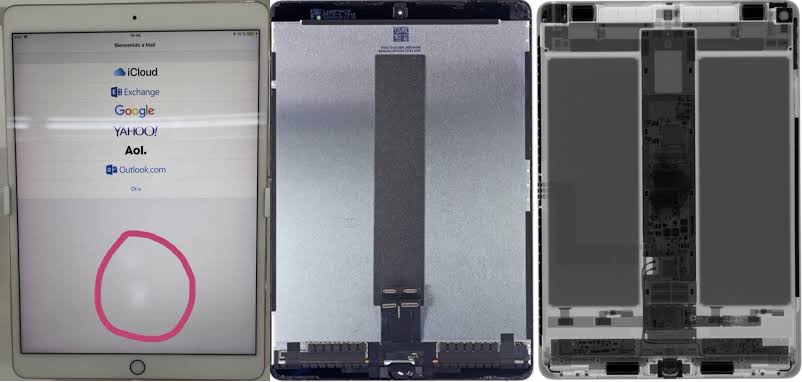
A bright spot on iPad Pro is one of those issues that can go from barely noticeable to constantly distracting. You open Notes, a white webpage, or the Settings app and suddenly see a circular or irregular patch that glows brighter than the surrounding display. It stays fixed in place no matter how you rotate the device or switch apps. This is a well-documented hardware problem, particularly on certain LCD-based iPad Pro models, and understanding a bright spot on iPad Pro helps you decide the next steps without wasting time on ineffective fixes.
What the Bright Spot Actually Looks Like
The typical bright spot appears as a soft, milky, or glowing area, often measuring anywhere from a few millimeters to about an inch across. It shows most clearly on solid white or light gray backgrounds and usually fades or disappears on pure black. Many owners of the 10.5-inch iPad Pro (2017) and related models report the spot sitting roughly one to two inches above the Home button area in portrait orientation. On later models the location can vary depending on internal component placement.
This is different from a stuck pixel, which is a tiny, sharp white, red, or green dot. It is also distinct from normal backlight bleed at the edges or the local-dimming bloom sometimes seen on mini-LED 12.9-inch models. The classic bright spot is a localized pressure or diffuser issue that remains locked to the physical screen.
Main Causes of the Bright Spot Issue
The root cause is almost always hardware. LCD iPad Pro displays use multiple layers, including a backlight and diffuser sheets that spread light evenly. When those layers are disturbed, excess light leaks through in one area.
Internal pressure is the most common culprit. Components such as the logic board connectors or mounting points sit directly beneath the display. Over time, heat cycling, minor flexing of the chassis, or manufacturing tolerances can create a permanent pressure point against the backlight diffuser. Thermal delamination can also play a role: repeated heating from the processor or charging circuits softens adhesives, allowing layers to separate slightly.
External factors contribute as well. Tight cases, heavy objects pressing against the iPad in a bag, or even firm pressure while drawing with the Apple Pencil can bruise the display layers. In some cases the issue appears without any obvious drop or impact, leading many users to suspect a manufacturing variation that becomes visible after normal use.
Stuck pixels form a smaller subset of bright spots. These occur when a sub-pixel remains electrically “on.” They are more amenable to temporary software attempts than larger pressure-related patches.
Newer tandem OLED iPad Pro models (M4 and later) are far less prone to classic backlight bright spots because each pixel produces its own light. Any large cloudy area on those devices is more likely the result of physical impact.
How to Confirm It Is a Hardware Problem
A quick series of checks separates software glitches from true display damage.
- Take a screenshot while the spot is visible. Open the screenshot and examine it. If the bright area is missing from the image file, the problem is in the physical screen layers. If it appears in the screenshot, investigate software or accessibility settings first (AssistiveTouch can create floating dots that some people mistake for screen defects).
- Rotate the iPad. Content moves, but a hardware bright spot stays fixed to the glass.
- View solid black, white, and gray full-screen images. Pressure and backlight spots intensify on light backgrounds and often vanish on black.
- Clean the screen carefully with a microfiber cloth and remove any case or screen protector to rule out external pressure or smudges.
These tests take only a few minutes and give you clear evidence before contacting support.
What Does Not Work and What Might
Software resets, iPadOS updates, True Tone toggles, or Night Shift changes will not remove a hardware bright spot. Aggressive tapping or massaging the area risks spreading the damage. Online pixel-fixer videos or apps that flash colors can occasionally free a true stuck pixel if left running for 10–20 minutes, but they have no effect on larger pressure or delamination spots.
The only reliable correction is professional display replacement. Apple and authorized providers replace the entire front assembly so the new panel is calibrated correctly and features such as True Tone continue to work.
Warranty, AppleCare+, and Repair Realities
Apple’s one-year limited warranty covers manufacturing defects. If technicians determine the bright spot stems from internal component pressure or factory issues and find no signs of accidental damage (dents, cracks, or liquid), replacement or repair is often free during the warranty period. Many 2017–2018 iPad Pro owners successfully obtained replacements this way.
AppleCare+ expands protection. Screen service fees for recent iPad Pro and iPad Air models have been as low as $29 per incident when the rest of the device is intact. Out-of-warranty screen replacements typically range from several hundred dollars upward depending on model and region, so weighing the cost against a newer device is wise for older units.
Schedule a Genius Bar appointment or contact an Apple Authorized Service Provider. Bring evidence of the issue (photos on different backgrounds help) and be prepared for diagnostic testing. Third-party shops may offer lower prices, but using non-genuine parts can affect True Tone, brightness uniformity, and future service eligibility.
Prevention Tips for Current and Future Devices
Use a well-fitted case that does not create concentrated pressure points. Avoid placing heavy items directly against the screen in bags. Keep the iPad out of prolonged extreme heat. On older LCD models, using Dark Mode or lower brightness for extended sessions reduces visibility of minor imperfections and may slow thermal stress on the layers.
For new purchases, consider AppleCare+ given the high cost of Pro displays.
Living With or Moving On From the Issue
A mild bright spot does not prevent normal use for many people, especially if it only appears on pure white backgrounds. Others find it distracting enough to seek repair or upgrade. The issue has been reported consistently across user communities for specific generations without an official Apple recall, yet individual warranty claims have succeeded when no user damage is present.
If you notice a bright spot on iPad Pro, start with the screenshot and background tests. Document what you see, check your coverage status, and contact Apple support promptly while any remaining warranty window is open. Understanding the hardware nature of the problem saves time and sets realistic expectations for a lasting solution.



One thought on “Bright Spot iPad Pro | Causes, Diagnosis & Real Solutions”