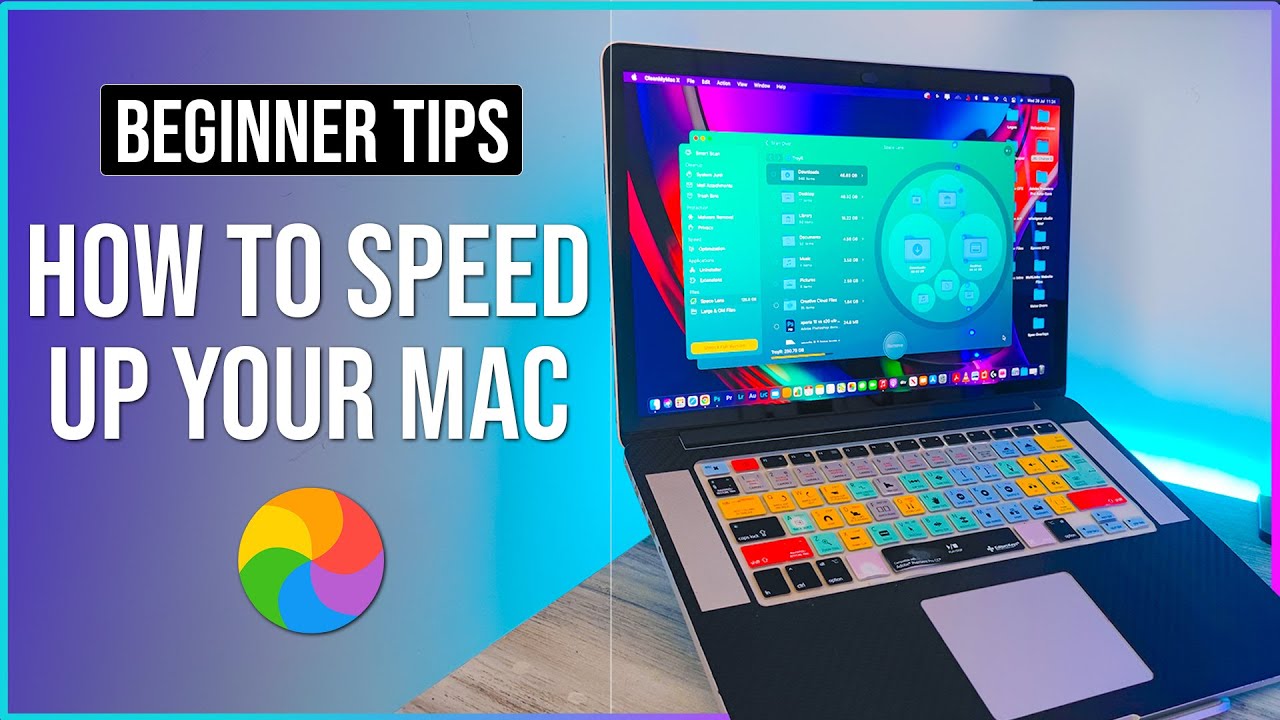
A slow MacBook can turn everyday tasks into frustrating delays. Whether you are dealing with laggy apps, spinning beach balls, or long boot times, the good news is that most performance issues can be fixed without expensive repairs or a new machine. These methods draw from common macOS behavior, Apple’s own recommendations, and real-world troubleshooting that consistently restores speed on both Intel and Apple silicon models.
How To Speed Up Your MacBook
macOS needs free space to run efficiently. When your drive fills beyond about 80–85 percent capacity, the system struggles with temporary files, virtual memory, and updates. Open Apple menu > About This Mac > Storage (or System Settings > General > Storage on newer versions) to see what is consuming space.
Delete large unused files, empty the Trash, and clear Downloads. Move photos, videos, and old documents to an external drive or iCloud. Uninstall apps you no longer need by dragging them to the Trash from the Applications folder. Tools such as the built-in Storage Management suggestions help identify large files and “Optimize Mac Storage” options. After clearing space, restart the MacBook. Many users notice smoother performance simply from reclaiming 20–30 GB.
Reduce Startup Items and Background Processes
Programs that launch automatically at login consume CPU and memory from the moment you start the computer. Go to System Settings > General > Login Items (or Users & Groups > Login Items on older macOS). Remove anything unnecessary by selecting it and clicking the minus button. Be cautious with essential security or productivity tools.
Open Activity Monitor (found in Applications > Utilities) and sort by CPU or Memory. Quit processes that are using high resources and are not critical. Avoid force-quitting system processes. Closing browser tabs, especially those with heavy media or multiple extensions, also frees significant RAM. Chrome and similar browsers are frequent culprits; switching to Safari or limiting extensions often yields immediate gains.
Keep macOS and Apps Updated
Apple regularly releases performance improvements and bug fixes. Check for updates in System Settings > General > Software Update. Install the latest macOS version when available, as newer releases include optimized code for both Intel and M-series chips. Update individual apps through the App Store or the apps’ own update mechanisms. Outdated software can cause memory leaks and inefficient resource use that accumulate over time.
Clear Caches and Temporary Files
System and app caches grow large and can slow disk access. While macOS manages most of this automatically, manual cleanup helps in stubborn cases. In Finder, hold Option and choose Go > Library, then open the Caches folder. Delete contents of folders belonging to apps that feel sluggish—do not remove entire system folders. Empty the Trash afterward and restart.
For a deeper clean, consider removing old iOS device backups stored in ~/Library/Application Support/MobileSync/Backup if you no longer need them. Avoid aggressive third-party “cleaner” apps that promise dramatic results; many do more harm than good by deleting necessary files.
Reset SMC and NVRAM/PRAM When Needed
Hardware-related slowdowns sometimes stem from power management or firmware settings. On Intel MacBooks, reset the System Management Controller (SMC) by shutting down, then holding the power button or specific key combinations depending on the model (refer to Apple’s support pages for exact steps). Reset NVRAM/PRAM by holding Option-Command-P-R at startup until the second chime or logo appears.
Apple silicon Macs handle these functions differently and rarely require manual resets; a simple restart or shutting down completely for 30 seconds often resolves similar issues. These steps address fan behavior, battery performance, and display quirks that can indirectly affect perceived speed.
Manage Visual Effects and Reduce Transparency
There are many steps how to speed up your macbook. macOS includes animations and transparency effects that look polished but tax the GPU and CPU, especially on older hardware. In System Settings > Accessibility > Display, enable “Reduce motion” and “Reduce transparency.” These changes lighten the load without sacrificing core usability. Closing unused Mission Control spaces and limiting widgets on the Notification Center further reduces background work.
Monitor Temperature and Hardware Health
Heat causes thermal throttling, which deliberately slows the processor to protect components. Ensure vents are clear of dust. Use a laptop stand for better airflow if the machine runs hot on soft surfaces. Check Activity Monitor’s Energy tab for power-hungry processes. On older Intel models, consider professional cleaning of internal dust if the fans run constantly.
If the MacBook is several years old and still feels constrained after software fixes, evaluate hardware limits. Adding more RAM is possible only on certain older models; modern MacBooks have soldered memory. An external SSD for media libraries can offload internal storage pressure. For Apple silicon machines, the unified memory architecture already performs efficiently—software optimization usually delivers bigger gains than hardware changes.
Additional Everyday Habits That Maintain Speed
Restart the MacBook regularly rather than relying solely on sleep mode. Close apps completely instead of leaving dozens open. Use the built-in Disk Utility First Aid occasionally to check the volume. Disable unnecessary iCloud features if they cause constant background syncing. Keep only essential browser extensions and clear website data periodically.
For users who dual-boot or run virtual machines, allocate resources carefully so the primary macOS environment retains priority. Avoid running intensive tasks like video exports or large software compiles while everyday apps need responsiveness.
When to Consider Professional Help or Replacement
If you want help how to speed up your macbook, if slowdowns persist after these steps, run Apple Diagnostics (hold the power button or D key at startup depending on model) to check for hardware faults. A failing SSD or battery can mimic software problems. Apple Store or authorized service providers can diagnose accurately. For machines more than six or seven years old that struggle with current software demands, upgrading to a newer model often provides the most reliable long-term improvement, especially with the efficiency of M-series chips.
How to speed up macbook, Following these steps in order —starting with storage and login items, then moving to updates, caches, and system resets—resolves the majority of everyday performance complaints. Consistency matters more than any single trick. Regular maintenance keeps a MacBook responsive for years, preserving both productivity and the device’s value.



One thought on “How to Speed Up Your MacBook : Practical Steps That Works”